Merchant portal guide
Sign-in security, test and live environments, 5 built-in roles, the menu, plus refunds, dispute evidence, settlements, key rotation and payout account changes.
Last updated 2026-10-20 · API contract v1.0.0
Sign-in and security
- An Owner or Admin invites you to join. The invitation is valid for 72 hours by default, and you set your password the first time you sign in.
- If your role requires MFA, you can enter the portal only after you set up an authenticator app during sign-in.
- Sensitive actions require step-up verification (enter a verification code). After you verify, you aren't asked again for 5 minutes by default when you do other sensitive actions in the same sign-in session. By default, 5 wrong codes in a row lock step-up verification for 15 minutes.
- If you lose your MFA device, there are no recovery codes. An Owner or Admin resets MFA for a regular member, and another Owner resets it for an Owner. If you're the only Owner, contact the platform: it verifies your identity offline and then resets MFA.
- If you forget your password, recover it on the sign-in page. If you belong to more than one merchant, switch merchants in the top bar.
Note
Durations and counts marked "default" on this page are set by the platform for all merchants, and the platform can adjust them within allowed limits. The values that the merchant portal shows (expiry times or prompts) are the ones that apply.
Test and live environments
- Switch environments with the "Live / Test" switch in the top bar. The test environment shows an orange banner that reads "You're in the test environment · No real funds are moved".
- Data, API keys and webhook endpoints are isolated between the two environments.
- While the live environment isn't activated, it shows an activation notice, "Live environment not activated yet".
Roles
| Role | Main permissions | Can't do |
|---|---|---|
| Owner | All features. The only role that can request a payout account change or transfer ownership (both require step-up verification) | — |
| Admin | Manage regular team members, API keys, webhooks and redirect URLs; view funds, export reports and request refunds | Change or grant the Owner role; change the rates, limits and settlement cycle that the platform sets |
| Finance | View balances, fees and settlements; export financial reports; request refunds; upload dispute evidence | Manage API keys, webhooks or the team |
| Developer | Manage API keys within the "Grantable API scopes"; configure webhooks and redirect URLs; view call and event logs; view payments and refunds (payer information is masked) | View balances, fees and settlements; request refunds |
| Viewer | View payments and refunds; with "Can view funds" turned on, also view balances, fees and settlements | Any write action or export |
Owners and Admins can change these member-level settings: a Viewer's "Can view funds" (off by default) and a Developer's "Grantable API scopes" (payments:read, payments:write and refunds:read by default). Roles are fixed and can't be customized.
The platform sets rates, limits and settlement cycles. Merchants, including Admins, can't change them. The platform announces changes to live rates at least 24 hours in advance.
Menu overview
| Menu | Page | Summary | Open in portal | Visible to |
|---|---|---|---|---|
| Overview | Overview | Successful volume, refunds, pending items and more (shown according to your permissions) | Open (opens the merchant portal in a new tab) | All |
| Transactions | Payments | Search by payment ID, merchant order ID, time, status, currency, amount, integration method, card brand and last 4 digits | Open (opens the merchant portal in a new tab) | All |
| Transactions | Payment details | Amount, status, attempts, 3DS result, fees, refund summary, settlement status, notification timeline | Payments › Payment details | AllDevelopers see masked payer information and no fees |
| Transactions | Request refund | Opens from Payment details; shows the refundable amount and reserved funds | Dialog in Payment details | Owner, Admin, Finance |
| Transactions | Refunds / Refund details | Refund status, amount, returned funds, review result; platform exception refunds are shown read-only (source "Exception refund") | Open (opens the merchant portal in a new tab) | All |
| Transactions | Disputes / Dispute details and evidence submission | Cases, evidence due date, evidence upload | Open (opens the merchant portal in a new tab) | Owner, Admin, Finance, Viewer |
| Funds | Balances | Shows 7 balance buckets per currency | Open (opens the merchant portal in a new tab) (Requires Owner, Admin or Finance) | Owner, Admin, Finance, ViewerViewers need "Can view funds" turned on |
| Funds | Balance transactions | Source, increase or decrease, balance bucket, occurred time and posted time | Open (opens the merchant portal in a new tab) (Requires Owner, Admin or Finance) | Owner, Admin, Finance, ViewerViewers need "Can view funds" turned on |
| Funds | Settlements / Settlement details | Settlement period, line items, fees, payout amount, account last 4 digits, result | Open (opens the merchant portal in a new tab) (Requires Owner, Admin or Finance) | Owner, Admin, Finance, ViewerViewers need "Can view funds" turned on |
| Funds | Payouts | Payout status and reference numbers | Open (opens the merchant portal in a new tab) (Requires Owner, Admin or Finance) | Owner, Admin, Finance, ViewerViewers need "Can view funds" turned on |
| Funds | Statements and reports | Export CSV by environment, currency and time (export jobs) | Open (opens the merchant portal in a new tab) (Requires Owner, Admin or Finance) | Owner, Admin, Finance |
| Developers | API Key / Key details | Create, rotate, revoke; usage history | Open (opens the merchant portal in a new tab) (Requires Owner, Admin or Developer) | Owner, Admin, Developer |
| Developers | Webhook settings | Endpoints, subscribed events, signing secret rotation (the secret is shown only once, when created or rotated), test send | Open (opens the merchant portal in a new tab) (Requires Owner, Admin or Developer) | Owner, Admin, Developer |
| Developers | API call logs | Search by request_id, path and status (logs are kept for up to 30 days) | Open (opens the merchant portal in a new tab) (Requires Owner, Admin or Developer) | Owner, Admin, Developer |
| Developers | Event deliveries | Events and the result of each delivery | Open (opens the merchant portal in a new tab) (Requires Owner, Admin or Developer) | Owner, Admin, Developer |
| Developers | Redirect URL allowlist | Add rules for return_url and cancel_url | Open (opens the merchant portal in a new tab) (Requires Owner, Admin or Developer) | Owner, Admin, Developer |
| Developers | API docs and testing guide | Opens this docs site; test card values are shown after you sign in | Open (opens the merchant portal in a new tab) (Requires Owner, Admin or Developer) | Owner, Admin, Developer |
| Team | Members / Invitations / Built-in roles | Invite, change roles, disable; invitation status | Open (opens the merchant portal in a new tab) (Requires Owner or Admin) | Owner, Admin |
| Team | Ownership transfer | Start after step-up verification; takes effect when the new owner accepts | Open (opens the merchant portal in a new tab) (Requires Owner) | Owner |
| Merchant settings | Basic info | Merchant profile, status and capabilities (read-only parts are set by the platform) | Open (opens the merchant portal in a new tab) | AllRead-only for Finance, Developer and Viewer |
| Merchant settings | Payout account | View the masked account; the Owner requests changes | Open (opens the merchant portal in a new tab) (Requires Owner, Admin or Finance) | Owner, Admin, FinanceRead-only for Admin and Finance |
| Merchant settings | Notification contacts | Technical, finance, dispute and business contacts | Open (opens the merchant portal in a new tab) | AllEditable by Owner and Admin |
| Merchant settings | Sign-in security | Password, MFA, sessions | Open (opens the merchant portal in a new tab) | All |
| Merchant settings | Audit log | Actor, action, target, masked changes, IP, time | Open (opens the merchant portal in a new tab) (Requires Owner or Admin) | Owner, Admin |
| Top bar | Notifications | In-app notifications (shows notifications from all environments, each with an environment tag; filter by environment) | Open (opens the merchant portal in a new tab) | All |
Common tasks
Request a refund
Roles that can do this: Owner, Admin, Finance
- Go to Transactions › Payments, then find the payment and open its details (Payments (opens the merchant portal in a new tab)).
- Click Request refund and fill in the refund amount (always enter the exact amount, even for a full refund), the refund reason and the merchant refund ID. The dialog shows the principal available to refund and the funds to reserve.
- After you submit, the status is "Pending review" (in the test environment, refunds are approved automatically by default and go straight to "Processing"). Once the platform approves the refund, it moves to "Processing" and finally becomes "Refund succeeded" or "Refund failed". You can see the result in your in-app notifications and on the refund details page.
- If your funds are insufficient, the platform doesn't accept the request (no refund is created) and shows you the shortfall. It doesn't automatically reduce the refund amount or cover the shortfall for you. You can top up offline and, once platform Finance records the top-up, submit the request again. Or you can ask the platform to consider using your reserve or the funds under a risk hold. After the platform approves, submit again within 7 days with the same merchant refund ID and amount, and the platform uses those funds automatically.
- You can't cancel a refund yourself after you submit it.
Upload dispute evidence
Roles that can do this: Owner, Admin, Finance
- When you receive a "New dispute" notification, go to Transactions › Disputes and open the case (Disputes (opens the merchant portal in a new tab)).
- Check the dispute reason, the amount and the evidence due time (converted to your display time zone and shown with the time remaining).
- Upload evidence such as orders, delivery, service records and communications. Accepted formats are PDF, JPG, PNG, TXT and CSV, up to 10 MB per file and 50 MB per case in total. You can submit a file only after it passes the security scan.
- After you submit, the platform sends the evidence on to the provider and records it. You get a reminder as the due time approaches and a notification of the result when the case closes. The effect on your funds follows the actual funds events.
- After the due time passes, you can't reopen submission by changing the date.
View settlements
Roles that can do this: Owner, Admin, Finance, Viewer
- Go to Funds › Settlements and filter by currency, status and time (Settlements (opens the merchant portal in a new tab) (Requires Owner, Admin or Finance)).
- Open a settlement to see the settlement period (in the business time zone), the source items, the amount payable S, the settlement fee F, the bank payout amount (S − F), the payout account snapshot (last 4 digits), the payout status and the bank reference.
- While a settlement shows "Under platform review", the platform is reviewing it. While a payout shows "Processing (awaiting bank confirmation)", wait for the platform to confirm. The platform doesn't pay out twice. If the bank returns a payout, the payout and the settlement change to "Payout returned" and the original success record is kept. The returned funds go back to pending settlement and are evaluated again. The platform doesn't automatically pay out again to the original account, so check your payout account.
- If you need a detail file, export it from Statements and reports. Viewers need "Can view funds" turned on.
Rotate an API key
Roles that can do this: Owner, Admin, Developer
- Go to Developers › API Key, choose the key to rotate and click Rotate (API Key (opens the merchant portal in a new tab) (Requires Owner, Admin or Developer); step-up verification is required in the live environment, and Developers are limited to keys within their grantable API scopes).
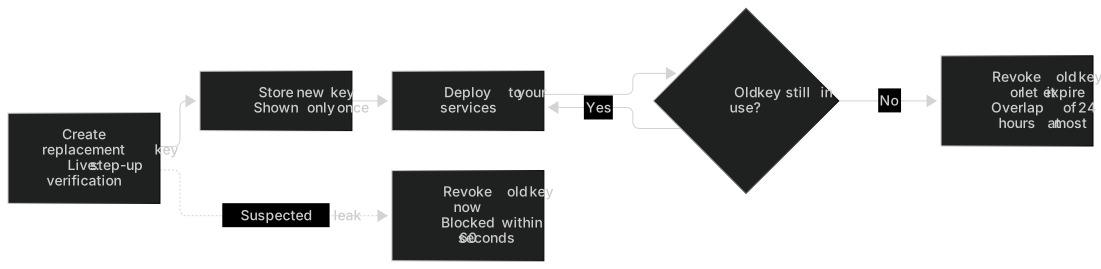
- The portal shows the full value of the new key only once. Store it in your secrets manager right away. Set when the old key expires (the overlap period is at most 24 hours).
- After you deploy the new key, open the key details and confirm that the old key's "Last used" time no longer updates.
- The old key expires automatically at the set time, or you can revoke it manually: open the "More" menu in the key's row and click Revoke. If you suspect a leak, revoke the old key right away. The platform blocks it within 60 seconds.
- Rotating a key doesn't change the idempotency scope, and it doesn't affect your webhook signing secret.
Rotate a webhook signing secret
Roles that can do this: Owner, Admin, Developer
- Go to Developers › Webhook and click Rotate (step-up verification is required; use the same action if you lose the signing secret, because the platform doesn't let you view an existing one): Webhook settings (opens the merchant portal in a new tab) (Requires Owner, Admin or Developer).
- The new secret is shown only once, so store it in your secrets manager right away. During the overlap period (24 hours at most), the platform signs with both the new and the old secret. Add the new secret to your signature verification configuration and deploy.
- When the overlap period ends, remove the old secret from your configuration. For details, see Signing secret and rotation.
Change the payout account
Roles that can do this: Owner
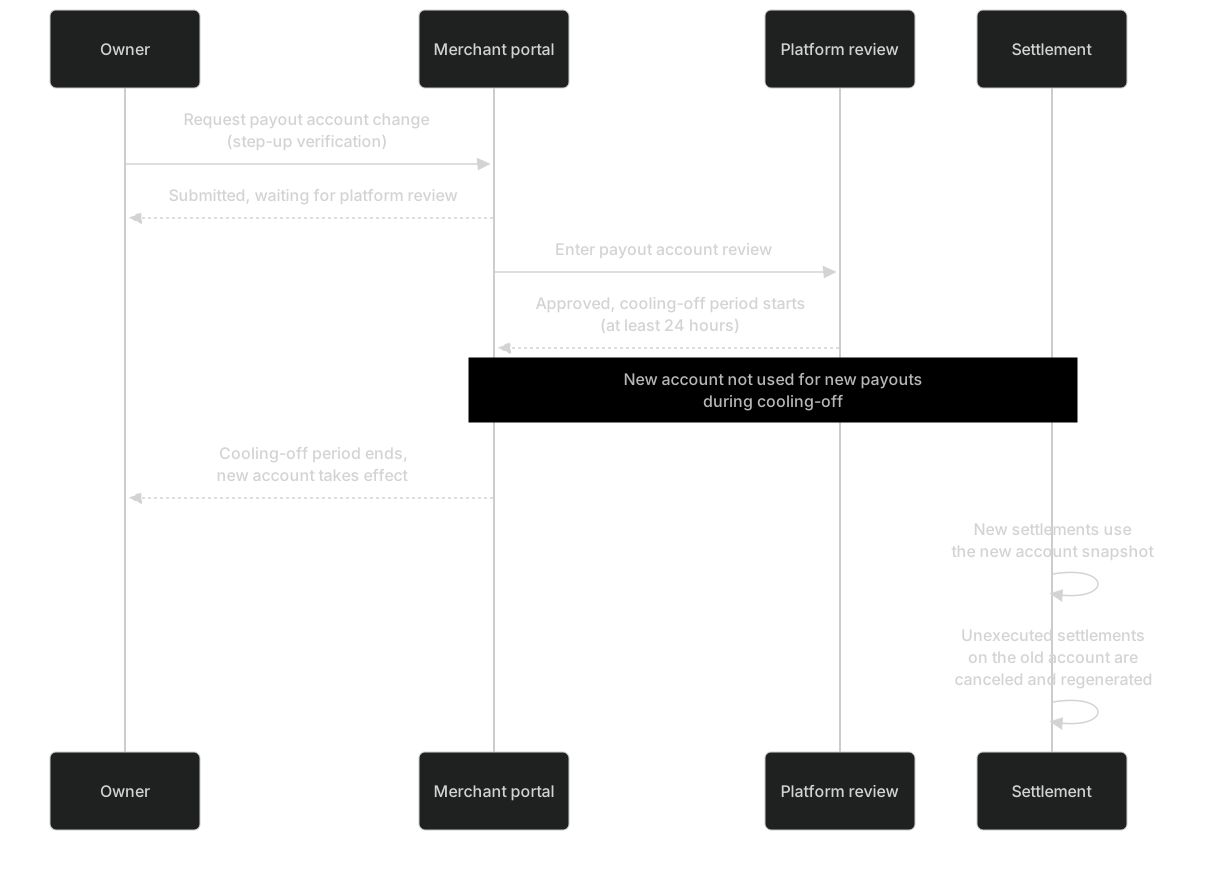
- Go to Merchant settings › Payout account and click Request change (Owners only; step-up verification is required): Payout account (opens the merchant portal in a new tab) (Requires Owner, Admin or Finance).
- Enter the account holder, bank name, account number and any other fields your region requires. After you submit, only the last 4 digits of the account number are shown.
- The platform reviews the request. Once it's approved, a cooling-off period of at least 24 hours begins, during which the new account isn't used for new payouts.
- When the cooling-off period ends, the new account takes effect and is used only for settlements generated afterward. Settlements that already exist keep the account snapshot they were generated with. Settlements that still use the old account and haven't been executed are canceled and regenerated.
Invite a team member
Roles that can do this: Owner, Admin
- Go to Team › Members, click Invite team member, enter the email address and choose a role (Admins can't grant the Owner role): Members (opens the merchant portal in a new tab) (Requires Owner or Admin). Inviting someone as Admin, Finance or Developer requires step-up verification.
- An invitation is valid for 72 hours by default. You can revoke or resend it (resending an invitation for an Admin, Finance or Developer also requires step-up verification). When the invitee accepts, they become a member.
- If needed, adjust a Developer's "Grantable API scopes" and a Viewer's "Can view funds" in the member settings.
Export statements and reports
Roles that can do this: Owner, Admin, Finance
- Go to Funds › Statements and reports and choose the report type (Payment details, Refund details, Balance transactions, Settlement details, Fee summary or Disputes report), the environment, the currency, the time range and the time zone.
- Create the export job. You receive a notification when it's done. The export file is kept for 24 hours at most, and each time you click download during that period, the portal generates a short-lived download link (60 seconds by default).
- Your permissions are checked again when you download. If your permission is revoked, you can't download the file even if it hasn't expired.